Receipts, letters, a signed form, a child's school report: the HushOS apps for iPhone and Android turn paper into a PDF and keep it with the rest of your files. Like every file in HushOS, the scan is locked on your phone before it uploads, so only you and the people you share it with can open it.


How to scan
- Open the folder you want the scan in, or stay on Home.
- Tap +, then Scan document.
- Hold your phone over the page. The scanner finds its edges and straightens it. Add as many pages as you need.
- Finish, and the pages become one PDF named with the date and time, such as
Scan 2026-11-09 10.42.15.pdf.
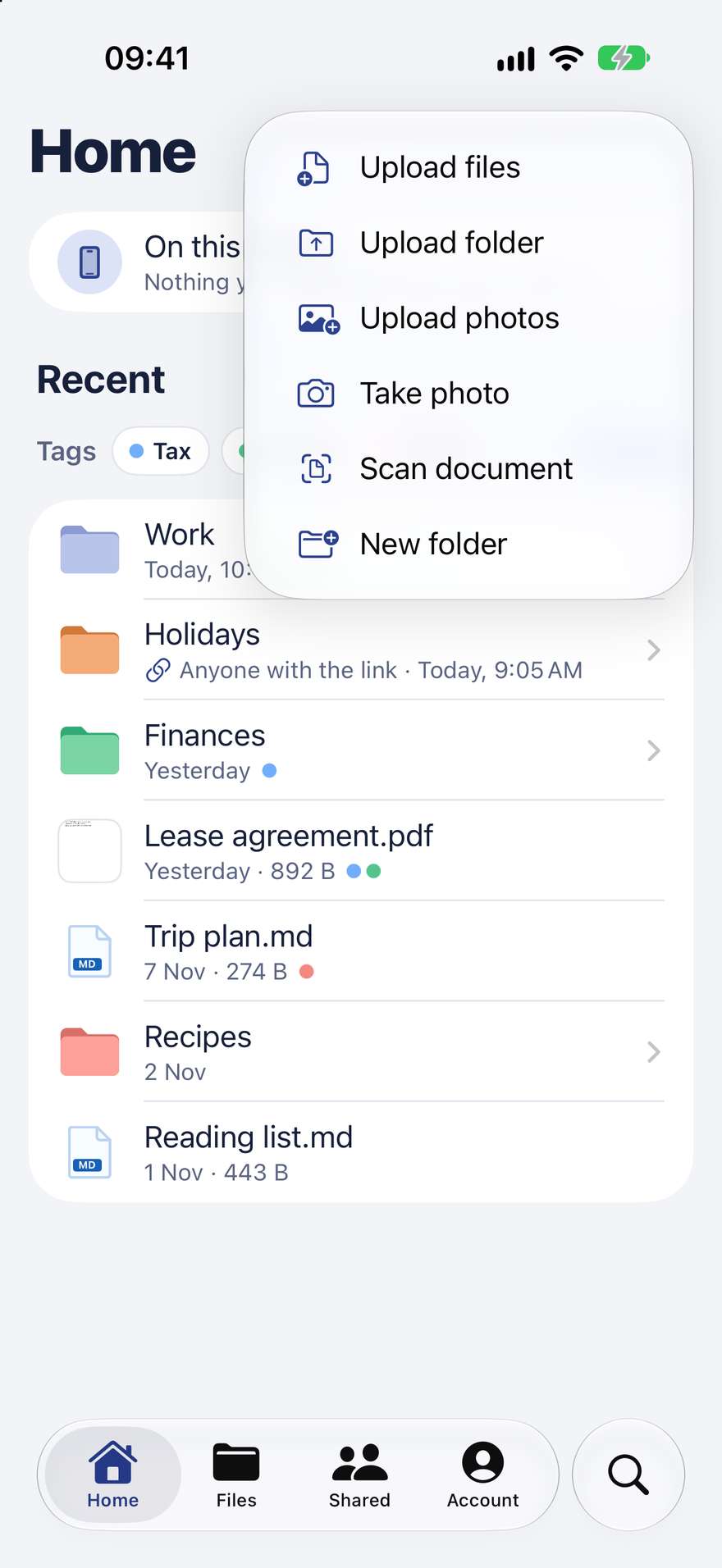
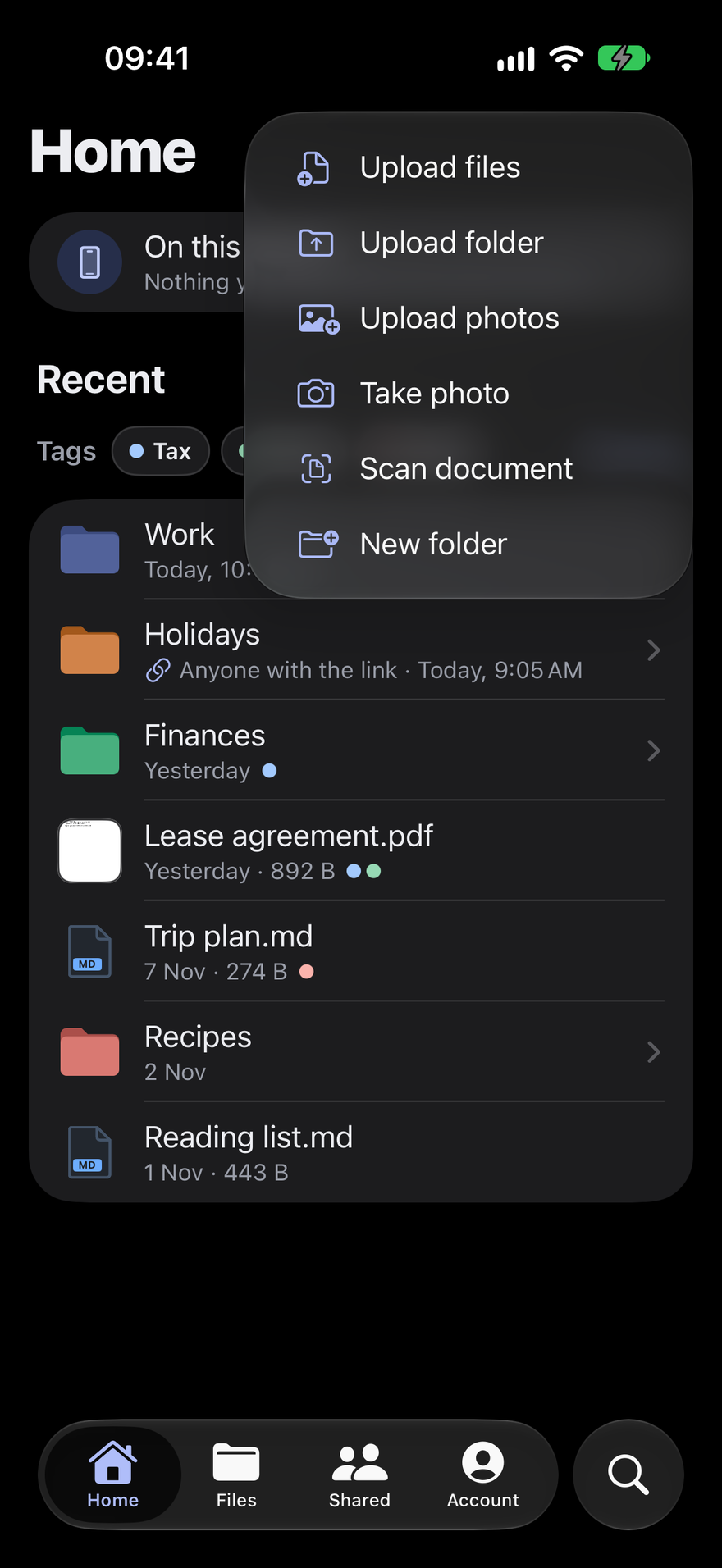
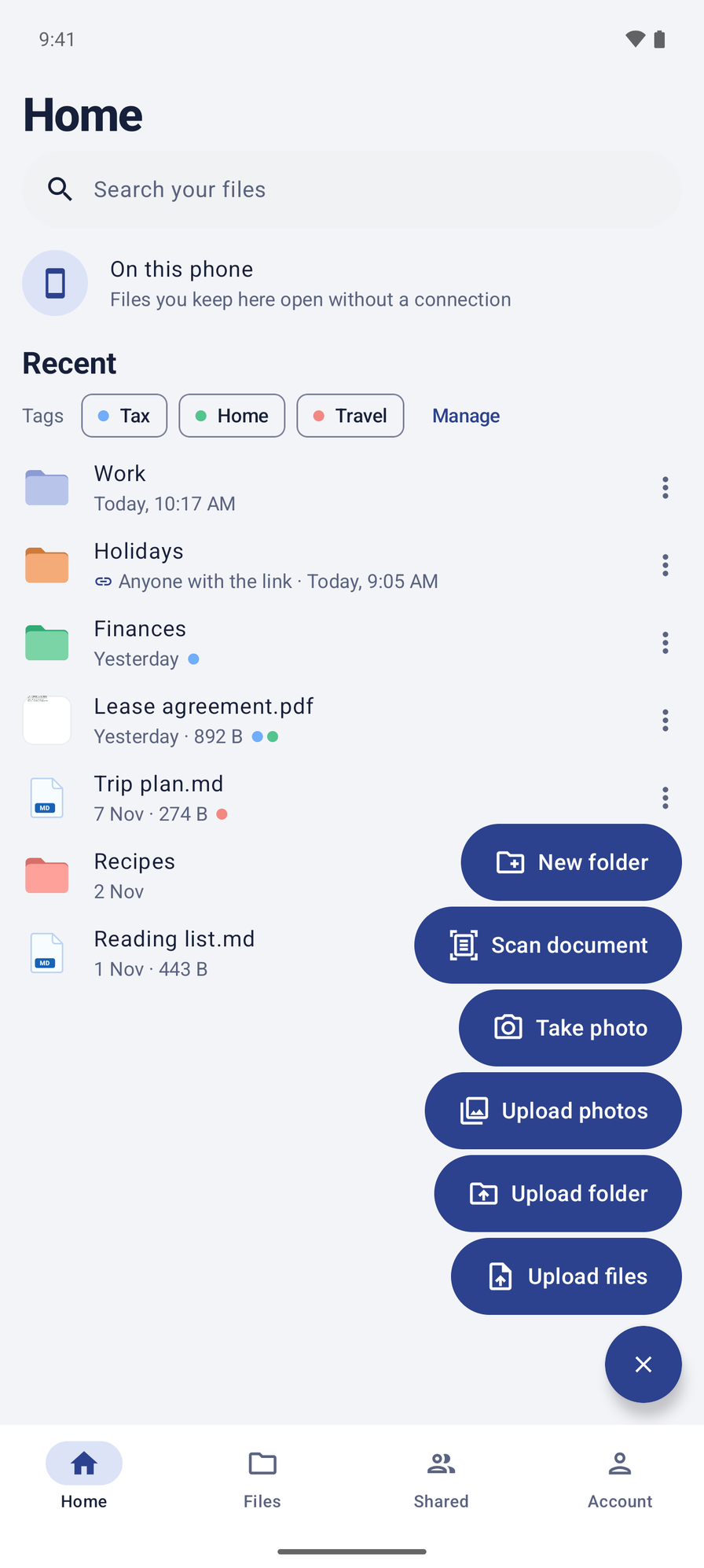
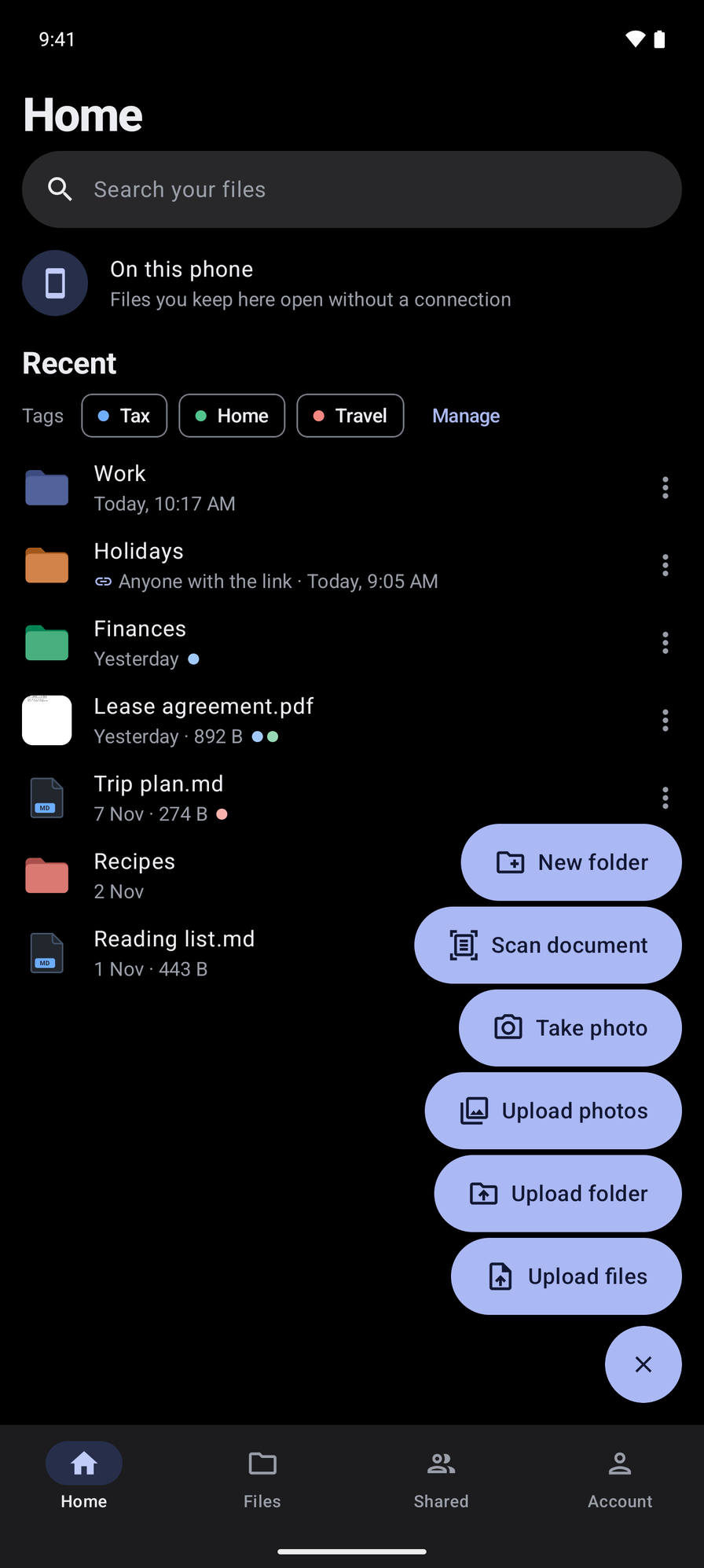
From there it is a file like any other: search for it, tag it, share it, or keep it on the phone to open without a connection.
What happens to the pages
- On iPhone, scanning is Apple's own document camera, part of iOS, running on the phone. HushOS puts the pages into one PDF on the phone, at full resolution.
- On Android, scanning is Google's document scanner, which Google Play services runs on the phone. It finds the edges, cleans up each page and hands HushOS a PDF. The scanner has its own camera access, so HushOS doesn't ask for yours. Once the scan is uploaded, the scanner's copy is deleted.
Either way, the PDF is locked on the phone before it leaves. Our servers hold only the encrypted file, as with everything else you keep in HushOS.
One thing is worth saying plainly. The code that comes with Google's scanner would report usage to Google, and we switch that off, so the HushOS app sends Google nothing. Google Play services itself is Google's software and works under Google's privacy policy. On a phone without Google Play services, Scan document says so, and Take photo still works.
Not on the web
Scanning is on the phones only. On a computer, upload the PDF from your scanner as you would any file.
Scan document is in the apps on the App Store and Google Play.